
Edit with an AI agent, live.
OpenFrame speaks MCP, the open protocol AI agents use to call tools. Turn it on, connect Claude Code, Codex or any MCP client, and the agent edits your project while you watch: every change on your timeline, every change undoable, nothing sent anywhere but your own computer.
Three ways to use AI with OpenFrame
-
An agent over MCP
Claude Code, Codex or any MCP client connects to the desktop app and works on your timeline with 167 tools.
-
The AI assistant
Describe an edit in the assistant column. A model on your computer, through Ollama or LM Studio, makes it with the same tools.
-
A render from a script
Write a project as JSON and render it from the command line, with progress as JSON lines:
openframe --render project.json --out video.mp4
Connect an agent in a minute.
-
Open the desktop app
Build it from source and open a project. Agents connect to the desktop app; the web build has no MCP server.
-
Allow AI agents
Click AI assistant in the title bar, open the Connect agents tab and turn on Allow AI agents.
-
Add OpenFrame to your agent
Click Add to Claude Code or Add to Codex. The app runs that program's own
mcp addcommand and tells you whether it was added, was already there, or the program was not found. Or copy the ready-made command; the panel fills in your token and the app's path. -
Ask for the video you want
Start a new agent session and describe the edit. Keep OpenFrame open, with Allow AI agents on, while the agent works.
claude mcp add --transport http --scope user openframe http://127.0.0.1:47280/mcp --header "Authorization: Bearer <token>"codex mcp add openframe -- "<path to openframe.exe>" --mcp-stdioopenframe --mcp-stdio
The token and the exe path above are placeholders: the Connect agents tab shows your own. Step-by-step setup, the Codex
config.toml entry and every option are in
docs/Automation.md.
What an agent can do.
Everything you can: import footage, cut it to a voiceover or to the beat, frame and push in, add titles that move, grade, mix, caption, and export every version. The tools tell it to start a new project, so your own projects stay as they are.
It also checks its work the way an editor would: preview_frames returns a contact sheet of the cut,
preview_motion the frames around a move, check_project measures the edit against design rules
(title safe areas, text size and reading time, caption speed, flashes, black gaps), and measure_loudness
reports the mix against online and broadcast specs before export.
An agent fills an empty project over MCP: footage lands on the timeline, then music, a COASTLINE title, transitions, a warm look and beat markers.
- The guide (help's overview) 0
-
Start here
3
help, describe_project, list_catalog
-
Projects
7
list_projects, open_project, new_project, save_project_copy, ...
-
Media
7
import_media, remove_media, relink_media, replace_clip, ...
-
Timeline
37
add_media_clip, add_color_clip, add_adjustment_clip, add_track, ...
-
Music, beats and markers
13
generate_music, plan_music, analyze_music, set_music_grid, ...
-
Picture and motion
25
set_param, add_keyframe, move_keyframe, move_motion_point, ...
-
Graphics and compositing
11
add_shape, set_shape, add_callout, set_anchor, ...
-
Speed
6
set_speed, set_speed_curve, set_speed_ramp, set_reverse, ...
-
Text and captions
11
add_text, set_text, style_text_range, animate_text_style, ...
-
Brand and ad elements
4
set_brand, apply_brand, add_ad_element, text_behind_subject
-
Effects, transitions and color
13
add_effect, edit_effects, copy_effects, apply_effect_preset, ...
-
Sound
20
add_voiceover, review_voiceover, retake_voiceover, text_to_speech, ...
-
Check and deliver
10
preview_media, preview_frames, preview_motion, preview_frame, ...
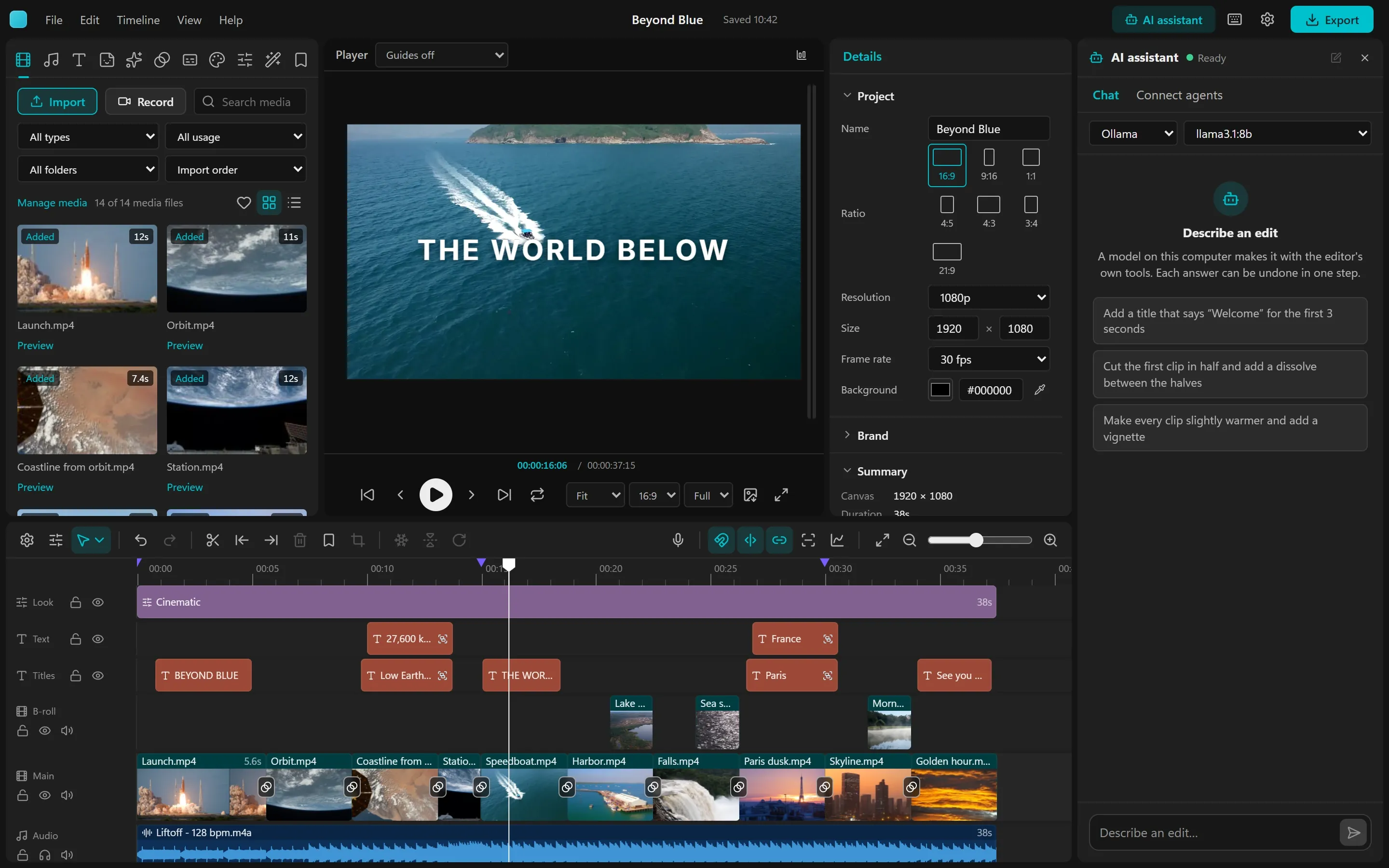
Or type it, to a model on your machine.
The AI assistant docks as a column beside the editor. Pick the model server and a model, type what you want, and watch the steps run; each answer that changed the timeline has one Undo for all of it. It finds Ollama or LM Studio on your computer; the model never leaves it.
Safe by default.
An agent can do a lot with your project, so the connection is closed until you open it, and only programs on your own computer can use it.
-
Off until you turn it on
No server listens until you switch on Allow AI agents. The app remembers your choice, and switching it off stops the server.
-
Local only
The server binds to 127.0.0.1, so other computers cannot reach it, and it refuses requests from web pages other than localhost, which blocks DNS-rebinding tricks.
-
A token for this install
Every request needs the install's own bearer token, made on first use and kept in the app's data folder. The stdio bridge reads it itself, so no command line holds it.
-
Visible and undoable
Agent edits appear on your timeline as they happen and undo like your own. An agent's exports go to your Videos folder and never replace an existing file.
The launch film is the demo.
The film on the home page was made this way. An agent generated the score, voiced the narration and placed every clip, title, glow, window and sound effect through the MCP tools, in about 30 calls, most of them batches. It listened back to the voice and retook three lines, checked each section on contact sheets, ran the project check until it passed, and exported at -14 LUFS with captions. It also wrote down every limit it met, from laying the film out again for 9:16 by hand to a title edit that dropped a styled word, as the next round's list of work.